> For the complete documentation index, see [llms.txt](https://survey.fmpx.docs.frox-it.de/llms.txt). Markdown versions of documentation pages are available by appending `.md` to page URLs; this page is available as [Markdown](https://survey.fmpx.docs.frox-it.de/datenexport/daten-exportieren/messdaten.md).
# Messdaten
*Menü Datei / Daten exportieren / Messdaten*
## Funktion
Die Messdaten aus KIVID-Feld können über diese Funktion formatiert ausgegeben werden.
## Export durchführen
Im Fenster wird das Zielformat ausgewählt und ein Dateiname angegeben. Standardmäßig wird der Projektname verwendet und die Messdaten werden im Ordner abgelegt, in dem auch das Projekt liegt.
Nach Klick auf \ wird direkt die Exportdatei geöffnet.
**Bitte beachten:**
*Auf dem Rechner muss Java installiert sein. Andernfalls können nicht alle Formate erzeugt werden.*
## Formate
Die Zielformate sind im Ordner C:\Benutzer\Öffentlich\Öffentliche Dokumente\frox\KIVIDFeld\XSLT abgelegt. Neben den mitgelieferten Zielformaten können auch eigene Formate erstellt werden.
## Exportdateien
#### **mGEO Koordinatenausgabe**
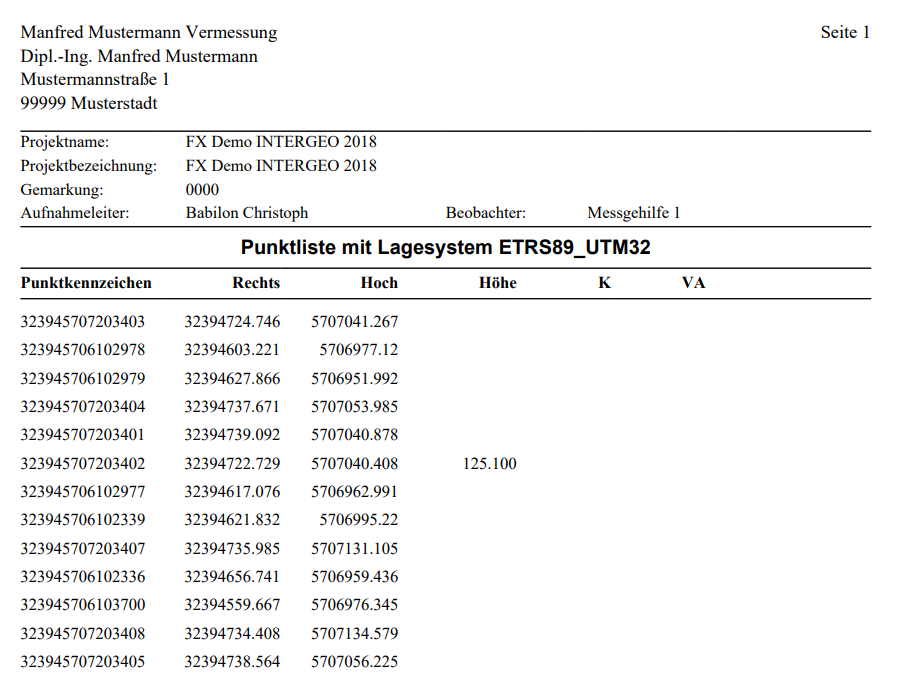
Ausgabe als .txtPunktkennzeichen, Rechtswert, Hochwert, Höhe, Code. Die Koordinaten werden ausschließlich in ETRS ausgegeben. Für die Ausgabe von Koordinaten anderer Koordinatensysteme kann der Export [Kodierte Punktformate](/datenexport/daten-exportieren/punktformate/kodierte-punktformate.md) genutzt werden.
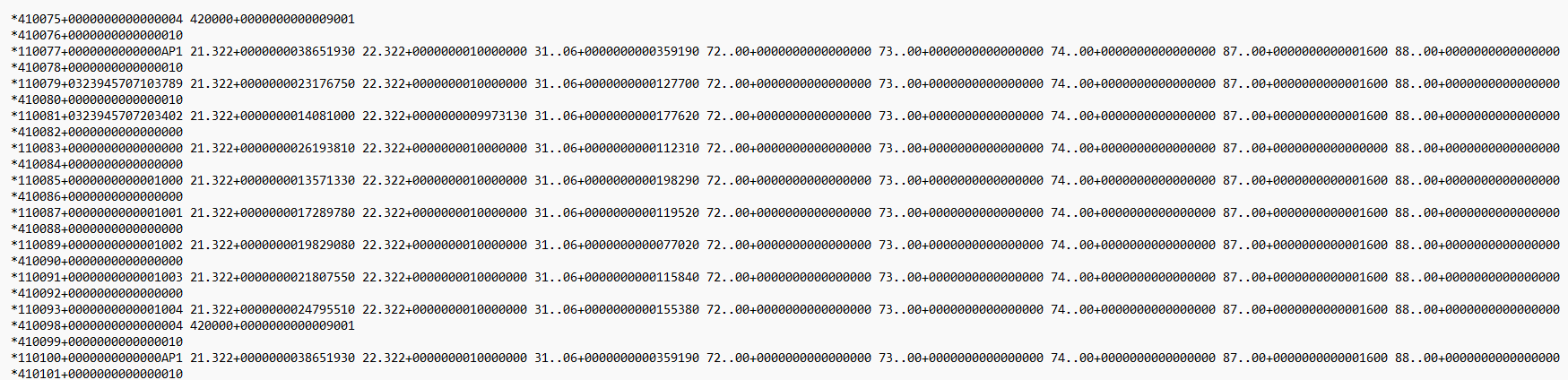
#### **rmGEO Polardatenausgabe (Leica GSI mit 16 Stellen)**
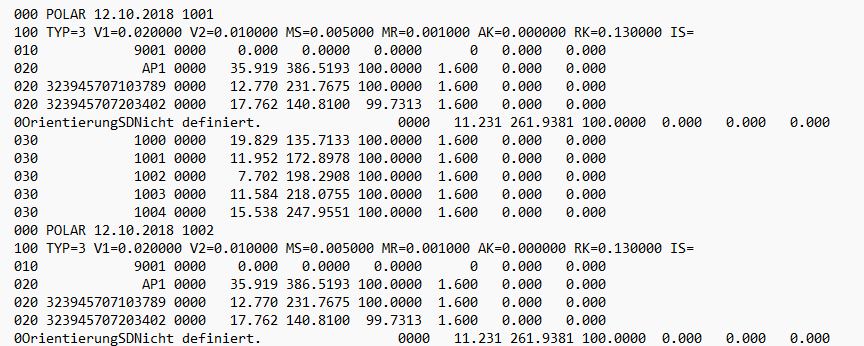
Ausgabe als .txt
### **GEOgraf**
Ausgabe als .txt
### **GNSS\_Protokoll**
Ausgabe als .pdf oder .rtf
### Messwert\_Protokoll
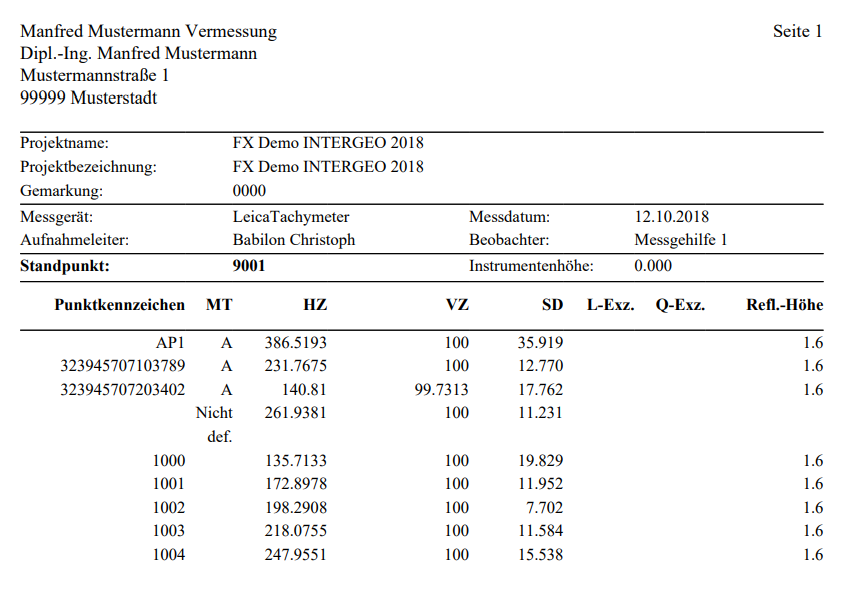
Ausgabe als .pdf oder .rtf
### Polar\_Protokkoll
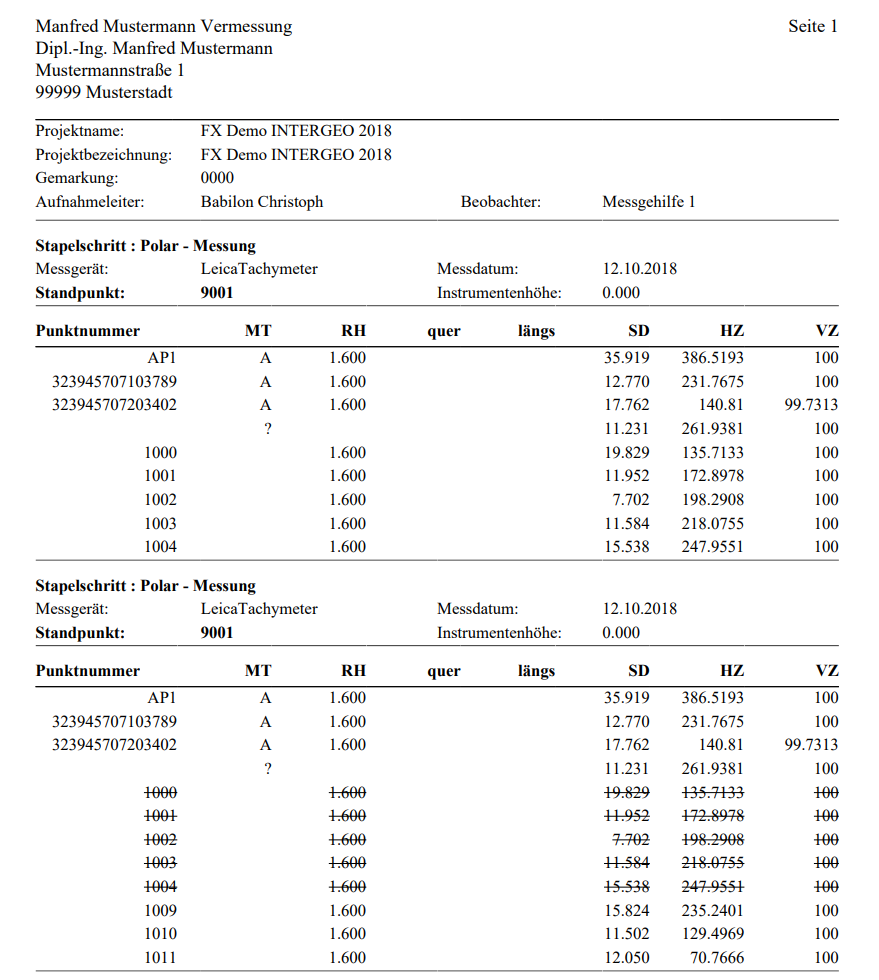
Ausgabe als .pdf oder .rtf
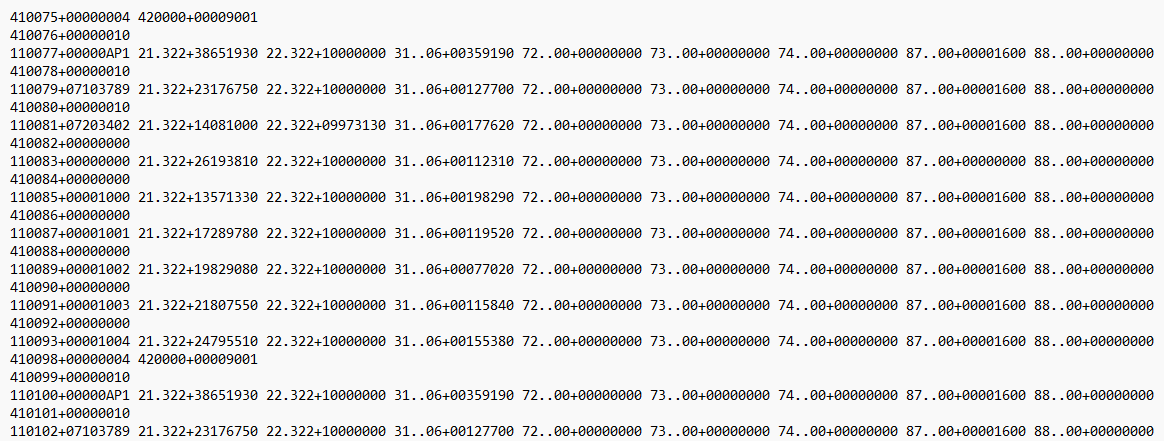
### Wild Leica GSI mit 16 Stellen
Ausgabe als .txt
### Wild Leica GSI mit 8 Stellen
Ausgabe als .txt
## Anpassung der Ausgabedatei
Standardmäßig steht im Kopf der Ausgabedatei eine fiktive Adresse. Diese Angaben können wie folgt angepasst werden.
Bitte navigieren Sie in folgenden Pfad:
C:\Benutzer\Öffentlich\Öffentliche Dokumente\frox\KIVIDFeld\XSLT\persoenliche Daten
Sie finden dort folgende Dateien:
Über einen Texteditor kann die Datei BueroName.xsl geöffnet werden. Nun können Name und Adresse in dieser Datei angepasst werden.
Die Änderungen werden direkt übernommen. Ein Neustart von FX Survey ist nicht notwendig.
Weitere Änderungen können in der Datei des jeweiligen Formats vorgenommen werden.
In der Datei Messwert\_Protokoll kann zum Beispiel in den Zeilen 1603 bis 1616 der Fuß des Protokolls angepasst oder entfernt werden.
Standardmäßig ist dort der Kontakt zu der Firma Burg eingetragen.
---
# Agent Instructions
This documentation is published with GitBook. GitBook is the documentation platform designed so that both humans and AI agents can read, navigate, and reason over technical content effectively. Learn more at gitbook.com.
## Querying This Documentation
If you need additional information that is not directly available in this page, you can query the documentation by asking a question.
Perform an HTTP GET request on the following URL with the `ask` and `goal` query parameters:
```
GET https://survey.fmpx.docs.frox-it.de/datenexport/daten-exportieren/messdaten.md?ask=&goal=
```
`ask` is the immediate question: it should be specific, self-contained, and written in natural language.
`goal` is what the user is ultimately trying to achieve, the reason they need the answer. Sharing it helps GitBook give you a better, more relevant answer. A goal is most helpful when it describes the outcome the user wants rather than restating the question. For example, with `ask=how do I create an API token`, a goal like `automate deployments from our CI pipeline` lets GitBook tailor the answer to that use case.
The response will contain a direct answer to the question and relevant excerpts and sources from the documentation.
Use this mechanism when the answer is not explicitly present in the current page, you need clarification or additional context, or you want to retrieve related documentation sections.
.png?alt=media&token=344da452-cd6b-4c0a-9f73-42aec1db3fe6)