> For the complete documentation index, see [llms.txt](https://survey.fmpx.docs.frox-it.de/llms.txt). Markdown versions of documentation pages are available by appending `.md` to page URLs; this page is available as [Markdown](https://survey.fmpx.docs.frox-it.de/die-funktionen-der-menus/menu-extras/achsen.md). Agents can also search and read this documentation through its [MCP server](https://survey.fmpx.docs.frox-it.de/~gitbook/mcp).
# Achsen
*Menü Extras / Achsen*
Funktion für die Definition von Achsen im Innendienst zur Absteckung mit dem Tachymeter oder GNSS Instrument. Die Definition der Achsen erfolgt im Innendienst, die Achsen werden im Projekt gespeichert und können im Außendienst ausgewählt werden.
## Vorbereitung der Achsen im Innendienst
Zunächst wird ein Projekt angelegt, mit dem der Außendienst dann später arbeitet.
Im Menü Extras wählen Sie den Menüpunkt "Achsen" für die Definition von Achsen im Innendienst.
Im ersten Fenster klicken Sie für die Definition einer Achse auf das Plus und für die Bearbeitung einer Achse auf das Zahnrad . Das Zahnrad wird aktiviert, wenn eine Achse aus der Liste ausgewählt wird.
**Bitte beachten:**
Wenn eine Achse einmal für eine Absteckung genutzt wurde, kann sie nicht mehr bearbeitet werden, das Zahnrad ist dann ausgegraut.
Über den Plusbutton öffnet sich das Fenster für die Definition der Achse.
Noch auszufüllende Felder werden mit einem roten Balken gekennzeichnet.
Die definierte Achse wird in die Liste übernommen und steht dann im Außendienst zur Verfügung.
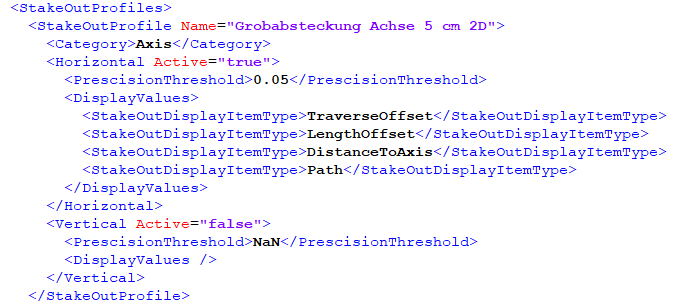
Die Definition der Achsen wir in der Datei GNSSSetinngs.config in folgendem Ordner abgelegt:
C:\Benutzer\Öffentlich\Öffentliche Dokumente\frox\FX Survey\Settings
## Anwendung im Außendienst
Im Außendienst wird das vom Innendienst vorbereitete Projekt geöffnet.
Für die Achsabsteckung stehen die vordefinierten Achsen nun im Außendienst zur Verfügung.
Achsabsteckung mit Tachymeter:

Achsabsteckung mit GNSS:

## Definition von Achsen in KIVID Feld
Bei der Definition von Achsen in KIVID Feld wird der Parameter Markierung Außen/Innen automatisch auf 2 gesetzt.
Bei dem Parameter handelt es sich um die Anzahl der Punkte, die außerhalb (A) und innerhalb (I) der Achse abgesteckt werden sollen. So soll abgesichert werden, dass die Achse vollständig abgesteckt wird.
In FX Survey wird nicht mit diesem Wert gearbeitet.
**Bitte beachten Sie folgende Vorgehensweise:**
Löschen Sie den Parameter Markierung Außen/Innen in KIVID Feld und speichern Sie nach dem Löschen des Parameters das Projekt in KIVID Feld. Es stehen Ihnen anschließend alle Achsen in FX Survey zur Verfügung.
Falls Sie den Parameter Markierung Außen/Innen zwingend benötigen, messen Sie bitte direkt in KIVID Feld.
---
# Agent Instructions
This documentation is published with GitBook. GitBook is the documentation platform designed so that both humans and AI agents can read, navigate, and reason over technical content effectively. Learn more at gitbook.com.
## Querying This Documentation
If you need additional information that is not directly available in this page, you can query the documentation by asking a question.
Perform an HTTP GET request on the following URL with the `ask` and `goal` query parameters:
```
GET https://survey.fmpx.docs.frox-it.de/die-funktionen-der-menus/menu-extras/achsen.md?ask=&goal=
```
`ask` is the immediate question: it should be specific, self-contained, and written in natural language.
`goal` is what the user is ultimately trying to achieve, the reason they need the answer. Sharing it helps GitBook give you a better, more relevant answer. A goal is most helpful when it describes the outcome the user wants rather than restating the question. For example, with `ask=how do I create an API token`, a goal like `automate deployments from our CI pipeline` lets GitBook tailor the answer to that use case.
The response will contain a direct answer to the question and relevant excerpts and sources from the documentation.
Use this mechanism when the answer is not explicitly present in the current page, you need clarification or additional context, or you want to retrieve related documentation sections.