> For the complete documentation index, see [llms.txt](https://survey.fmpx.docs.frox-it.de/llms.txt). Markdown versions of documentation pages are available by appending `.md` to page URLs; this page is available as [Markdown](https://survey.fmpx.docs.frox-it.de/die-funktionen-der-menus/menu-gnss/einstellungen.md).
# Einstellungen
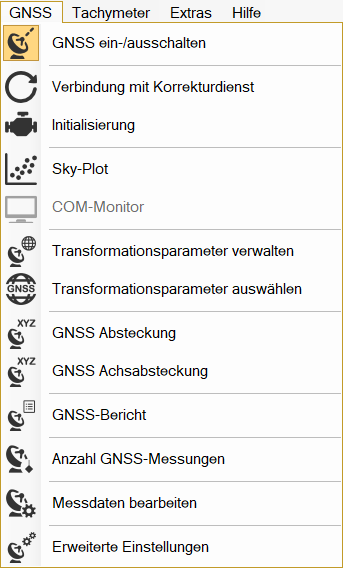
*Menü GNSS / Erweiterte Einstellungen*
Modul **M-FX GNSS Steuerung frox**
*Menü GNSS / Einstellungen: Leica Zeno Connect*
Modul **M-FX GNSS Zeno**
Die Einstellungen sind abhängig von der Receiverauswahl in den Programmeinstellungen unter GNSS. Je nach Einstellung öffnet sich hier das entsprechende Fenster.
## Modul **M-FX** **GNSS Steuerung frox**
**Receiverauswahl: GNSS Steuerung frox**
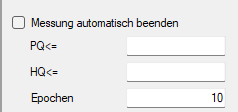
Hier können Grenzwerte eingestellt werden. Wenn bei der GNSS Methode Differential-Phase gewählt wird, kann eine Messung nur ausgelöst werden, wenn die Grenzwerte eingehalten werden.
Wenn der Haken bei "Messung automatisch beenden" gesetzt ist, dann wird die Messung automatisch beendet, sobald die eingetragenen Werte bei PQ, HQ und Epochen erreicht sind.
Wird die Messung vor Erreichen der Werte gestoppt, dann wird nur ein Objekt erstellt und kein Messpunkt gesetzt.
Wenn bei "Messung automatisch beenden" kein Haken gesetzt ist, dann läuft die Messung so lange weiter, bis Sie vom Nutzer gestoppt wird, egal welche Epochenzahl eingetragen ist.
## Modul **M-FX** **GNSS Zeno**
**Receiverauswahl: Leica Zeno Connect**
Die Funktion holt das Zeno Connect Fenster in den Vordergrund.
#### **Zeno Connect 3.5**
Dort können unter dem Reiter Koord.System Einstellungen zu Koordinatensystemen vorgenommen werden. Das hier eingestellte Koordinatensystem muss mit dem Koordinatensystem des FX Projektes übereinstimmen.
Bei Geoidmodell kann ein vordefinierten Modell genutzt werden. Setzen Sie dafür einen Haken in das Kästchen. Für die Auswahl eines eigenen Geoidmodells klicken Sie auf das Stiftsymbol neben der Eingabezeile. Nicht alle Antennen haben ein vordefiniertes Geoidmodell.
Geoidmodelle liegen hier:
C:\Benutzer\Öffentlich\Öffentliche Dokumente\Leica Geosystems\Geoid Models
#### **Zeno Connect 4.x**
Bei Receiverauswahl Leica Zeno Connect mit Neigung öffnet sich die Version 4.x von Zeno Connect.
Dort können die Einstellungen bearbeitet werden.
Informationen über die Einstellungen in Zeno Connect finden Sie im Kapitel [Verbindung über Leica Zeno Connect 3.x](/gnss-antennen-einrichten/verbindung-uber-leica-zeno-connect-3.x.md) bzw. [Umstieg auf das neue Leica Zeno Connect 4.x](/gnss-antennen-einrichten/umstieg-auf-das-neue-leica-zeno-connect-4.x.md)
## **Receiverauswahl: GNSS-Zeiger**
Dient dem Anzeigen der Position. Genutzt wird dabei das interne GPS des Tablets.
Es öffnet sich das Fenster für die erweiterten Einstellungen.
---
# Agent Instructions
This documentation is published with GitBook. GitBook is the documentation platform designed so that both humans and AI agents can read, navigate, and reason over technical content effectively. Learn more at gitbook.com.
## Querying This Documentation
If you need additional information that is not directly available in this page, you can query the documentation by asking a question.
Perform an HTTP GET request on the following URL with the `ask` and `goal` query parameters:
```
GET https://survey.fmpx.docs.frox-it.de/die-funktionen-der-menus/menu-gnss/einstellungen.md?ask=&goal=
```
`ask` is the immediate question: it should be specific, self-contained, and written in natural language.
`goal` is what the user is ultimately trying to achieve, the reason they need the answer. Sharing it helps GitBook give you a better, more relevant answer. A goal is most helpful when it describes the outcome the user wants rather than restating the question. For example, with `ask=how do I create an API token`, a goal like `automate deployments from our CI pipeline` lets GitBook tailor the answer to that use case.
The response will contain a direct answer to the question and relevant excerpts and sources from the documentation.
Use this mechanism when the answer is not explicitly present in the current page, you need clarification or additional context, or you want to retrieve related documentation sections.
.png?alt=media&token=1c0ba406-05c0-4975-a90d-615c78792d57)